How do I scan a paper form to use as a form layout?
Forms
Use a printed form to create a form layout. Creating a form layout is much easier when you use a template to position objects correctly on the form workspace. Instead of measuring the position of each object, you can import a scanned form and place it on the workspace as a non-printing overlay.
Before you get started
-
Scan the form using a scanner and save it as a.bmp,. ico, or.wmf. image file. If you are not sure which image type to use, choose .bmp.
-
Resize the scanned form to fit the measurements of the form layout. See the help topic titled How do I resize a scanned form?
Opening the scanned form in the Forms Design Editor
1. Open File > Save As and save the image with a new filename.
Important! Do not replace the original image with the resized image.
2. Open Connect [Application Name] > Organization > Forms.
You'll want to replace [Application Name] with the name of the Caselle application that will use the scanned form.
3. Select the Form Type. Click OK.
4. Click Create a New Form.
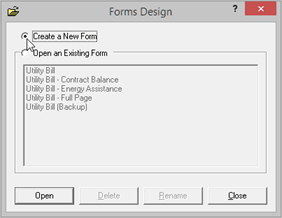
Forms Design, Create a New Form option
5. Click Open.
6. Click Options (F12).
7. Enter the Template.
This is the template filename and directory of the scanned image. You can Browse for the filename.
8. Click Accept.
9. Use the original form, the one that you scanned, to measure the position of several key fields. You'll need the distance from the left edge and top edge.
10. Use the Form Designer to compare the position of the fields on the form layout in the Forms Designer to the position of the field on the original form.
-
If the measurements from the scanned form are not the same as the measurements from the actual form, resize the scanned form. See the help topic titled How do I resize a scanned form?
-
If the measurements are the same, the template is ready to go.
Copyright © 2025 Caselle, Incorporated. All rights reserved.