How do I add a new vendor?
Set up a new vendor
A vendor is an individual, entity, or organization that will fill the purchase order. You can use Setup New Vendor or Modify Existing Vendors to set up a new vendor record, make changes to an existing vendor record, or delete a vendor record. You cannot delete a vendor record that is linked to transactions.
Adding a new vendor
1. Open Connect Accounts Payable > Vendors > Setup New Vendors.
2. Set up the vendor properties.
Add the vendor contact information, vendor type and status, and 1099 information for 1099 vendors.
To learn more, see Setting up vendor properties.
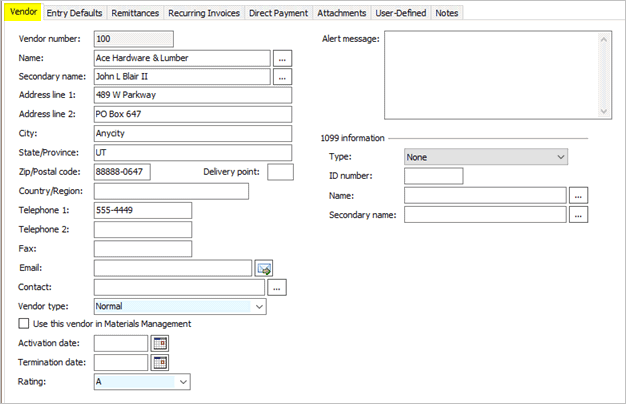
Vendor tab
3. Set up the entry defaults.
When you select the vendor, the vendor's default information will be displayed in the entry form for requisitions, purchase orders, invoices, and payments. The default information for the vendor is saved on the Entry Defaults tab in Setup New Vendors and Modify Existing Vendors.
To learn more, see How do I assign default values to a vendor?
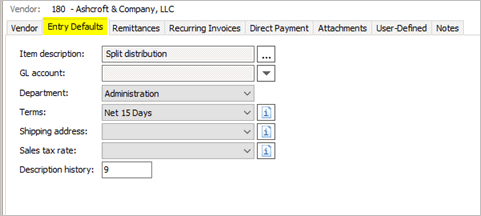
Entry Defaults tab
4. Set up the remittances.
Add the vendor's remittance address. If the vendor has more than one remittance address, select the default remittance address.
To learn more, see How do I add/remove a remittance address?
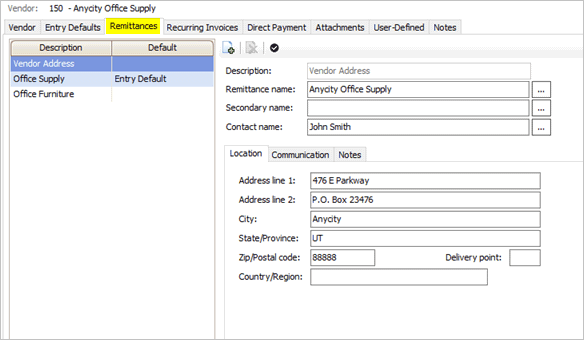
Remittances tab
5. Set up the recurring invoices.
Add a recurring transaction to send out an invoice on a regular basis. For example, let's say City ABC uses Carl's Custodial Service to provide cleaning services. It's always the same order each month. So, City ABC wants to automatically generate an invoice each month for $150.00 to send to Carl's Custodial Service.
To learn more, see How do I add a recurring invoice?
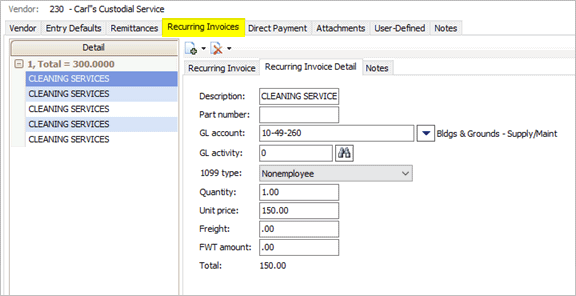
Recurring Invoices tab
6. Set up the direct payments.
Use a direct payment to pay a vendor without printing a check.
To learn more, see How do I add a direct payment?
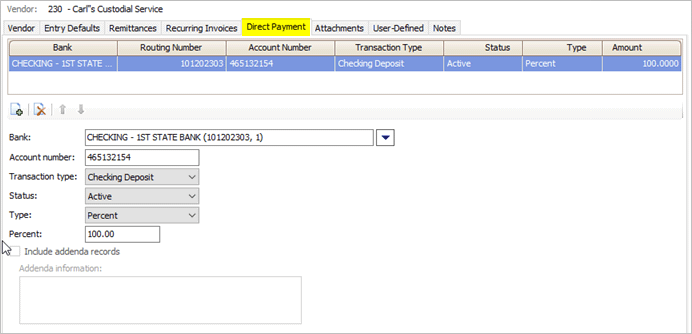
Direct Payment tab
7. Add files to the vendor record (optional).
Attach files that you want to keep to the vendor file.
To learn more, see How do I add files? (Vendors)
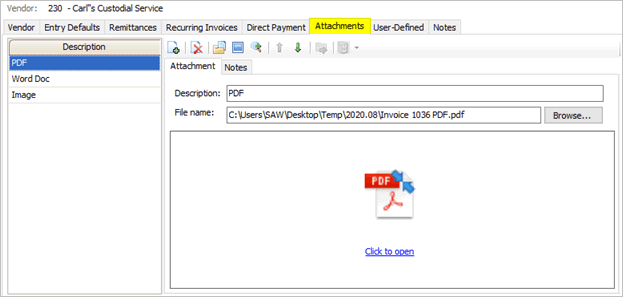
Attachments tab
8. Set up user-defined fields.
If your organization is using user-defined fields to collect additional vendor information, click the User-defined tab to enter it. If your organization is not using user-defined fields, the User-defined tab will be blank.
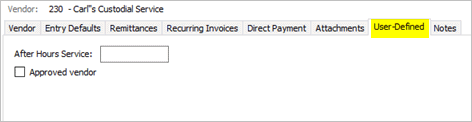
User-defined tab
How do I add a user-defined field to collect vendor information? Go to Organization > Organization and use the User-defined tab to add a new user-defined field and assign it to the Vendor table. Assigning a user-defined field to the Vendor table will add the field to the User-defined tab in Setup New Vendors/Modify Existing Vendors.
9. Click Save (CTRL+S).
The vendor is saved.
202008, 2020Apr13
Vendor properties
Vendor number
The next available vendor number displays in the Vendor Number box.
Name and Secondary name
Use the Name box to enter the vendor's primary name. Use the Secondary Name box to enter the vendor's alternate name (optional). When you look up a vendor, you can enter the vendor's primary name, secondary name, or vendor number.
Address line 1 and 2
Use the Address Line 1 box to enter the vendor's address. Use the Address Line 2 box to enter the second line of the vendor's address, for example, a suite number, apartment number, and so on.
City, State/Province, Zip/Postal Code, Delivery Point
Use these boxes to finish entering the vendor's address.
Telephone 1 and 2, Fax
Enter the vendor's primary and secondary telephone number and fax number.
Use the Email box to enter the vendor's email address. Example: Pat.Smith@businessname.com
Contact
Use the Contact box to enter the name of the individual who is acting as the main contact for my organization.
Vendor type
Use the Vendor Type list to select an option. The vendor types in the list are defined by the organization. You can enter a new vendor type or you can select a vendor type from a list of previous entries. Example: Rentals, Equipment, Office Supplies, and Exterior Maintenance
Use this vendor in Materials Management
Connect stores vendors in the Accounts Payable application and Materials Management application. The primary location for storing vendors is in the Vendor table in Accounts Payable. You can copy the vendor records from the Accounts Payable application to the vendor table in Materials Management application so you can use the Accounts Payable vendors in Materials Management. However, you cannot copy vendor records from the vendor table in the Materials Management application to the Accounts Payable application.
Activation date
Use the Activation box to enter the date when the vendor is active. An active vendor can be assigned to transactions.
Termination date
Usually, the Termination Date box is left blank on a new vendor. However, if you know when you will stop using the vendor, enter that date in the Termination Date box. Connect will not assign a vendor with a termination date to new transactions.
Rating
Use the Ratings list to select an option. The ratings in the list are defined by the organization. You can enter a new rating or you can select a rating from a list of previous entries.
Alert message
Use the Alert Message box to enter a message that will display on the screen when you use the routines in the Accounts Payable application to look up the current vendor.
1099 information
If you're setting up a 1099 vendor, use the 1099 Information section to enter the 1099 vendor information. A 1099 vendor is a vendor of goods, services, or goods and services who is not incorporated and your organization has made payments in excess of $600 dollars for the tax year. A landlord or independent contractor is an example of a vendor who is not incorporated.
Entry defaults
How do I assign default values to a vendor?
Remittances
How do I add/remove a remittance address?
Recurring invoices
How do I add a recurring invoice?
How do I delete a recurring invoice?
Direct payment
How do I add a direct payment?
Attachments
Adding a new vendor
1. Open Connect Accounts Payable > Vendors > Setup New Vendors.
2. Enter the Vendor Number.
The vendor number is a number that is assigned to the vendor.
3. Enter the vendor's contact address and telephone numbers.
4. Enter the Contact.
A contact is person with whom you communicate. Clicking the button at the end of the field will parse the contact name into First Name, Middle Name, Last Name, and Suffix.
5. Select a Vendor Type.
A vendor type is a category that you can use to organize the vendors. You get to define the categories that will be assigned, as well as choose the rationale behind the categories that you select.
For example, Jane creates a vendor type for Rentals, Equipment, Office Supplies, and Exterior Maintenance.
6. Set up the option to Use This Vendor in Materials Management.
There are two locations for storing vendors in Connect. The primary location is here, in Accounts Payable. The other location is in Materials Management. You can copy vendor records from Accounts Payable to use in Materials Management; however, vendor records that are created in Materials Management cannot be copied to the vendor table in Accounts Payable.
Do you wish to add this vendor to the vendor table in Materials Management?
Yes, I want to use this vendor in Materials Management. Click to select Use This Vendor In Materials Management.
No, I do not want to use this vendor in Materials Management. Click to deselect Use This Vendor In Materials Management.
7. Enter the Activation Date.
The Activation Date is the date when this account status is active. An active account can be tied to billings, invoices, and transactions. When an account is not active, users cannot select the account or use it to create new transactions, but the account will remain in the Vendor file.
8. Skip the Termination Date.
The Termination Date is the date the account status in not active.
9. Select the Rating.
A rating is a classification according to grade. You do not need to assign a rating. However, if you choose to do so, you can use the rating system to create a system that is meaningful to you.
10. Enter the 1099 Information.
A 1099 vendor is a vendor of goods and/or services that is not incorporated (such as a landlord or independent contractor) that the organization has made payments in excess of $600 dollars for the tax year.
11. Click the Entry Defaults tab.
12. Use the fields on the Entry Defaults tab to enter the default values for the current vendor.
The values stored here will display in the form when you select this vendor.
13. Click the Remittances tab.
A remittance is a sum of money that is remitted to a person or organization in payment of a demand or account.
14. Enter the remittance address for the current vendor.
You can enter more than one remittance address. You can also choose which remittance address to use as the default remittance address.
15. Click the Recurring Invoices tab.
A recurring invoice is an invoice that needs to be created for a customer, or group of customers, at regular intervals.
Does the vendor have recurring invoices?
Yes, recurring invoices exist. Click the Recurring Invoices tab to enter recurring invoices for the vendor.
No, recurring invoices do not exist. Continue to the next step.
16. Click the Direct Payment tab.
A direct payment is a payment made to the account of the payee. For example, Jane rents a backhoe periodically from Acme Equipment Rental to complete general maintenance. She sets up a direct payment to withdraw funds from the organization's bank account and deposits those funds directly into the bank account for Acme Equipment Rental.
Do you want to use direct payments?
Yes, I want to use direct payments. Click the Direct Payment tab to set up the direct payment properties.
No, I do not want to use direct payments. Skip this section.
17. Click Save (CTRL+S).
The vendor record is saved.
Copyright © 2025 Caselle, Incorporated. All rights reserved.